>Support
Search by topic, feature or keyword
Step 1: Locate your Site ID in Best Practice
Before starting in MediQo, you need a specific 4-digit code from your Best Practice software.
Open Best Practice (BP) Premier.
In the top left menu, click on Help.
Select About from the dropdown menu.
A popup window will appear. Locate the Site ID (a 4-digit number) and write it down or copy it.
Click Close.
Step 2: Setup the Connection in MediQo
Once you have your Site ID, you can finalize the integration within your MediQo dashboard.
Log in to your MediQo account.
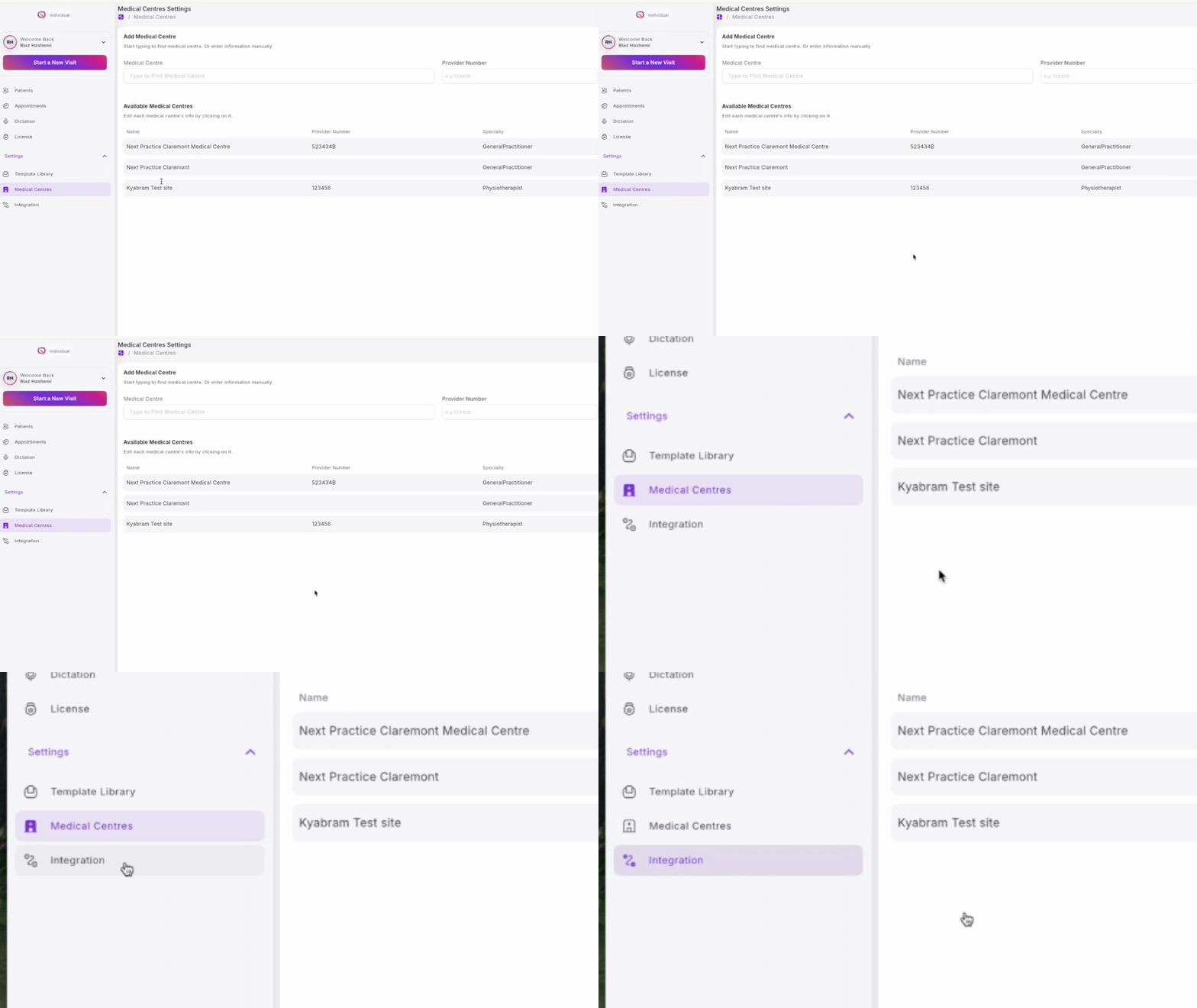
On the left-hand sidebar menu, scroll down and click on Integrations.
Find the Best Practice card and click the purple Connect API button.
In the popup window, type your Site ID into the text field.
Click the purple Get Locations button.
Select your specific practice or clinic from the dropdown menu that appears.

Step 3: Verify the Connection
It is important to ensure the data is flowing correctly.
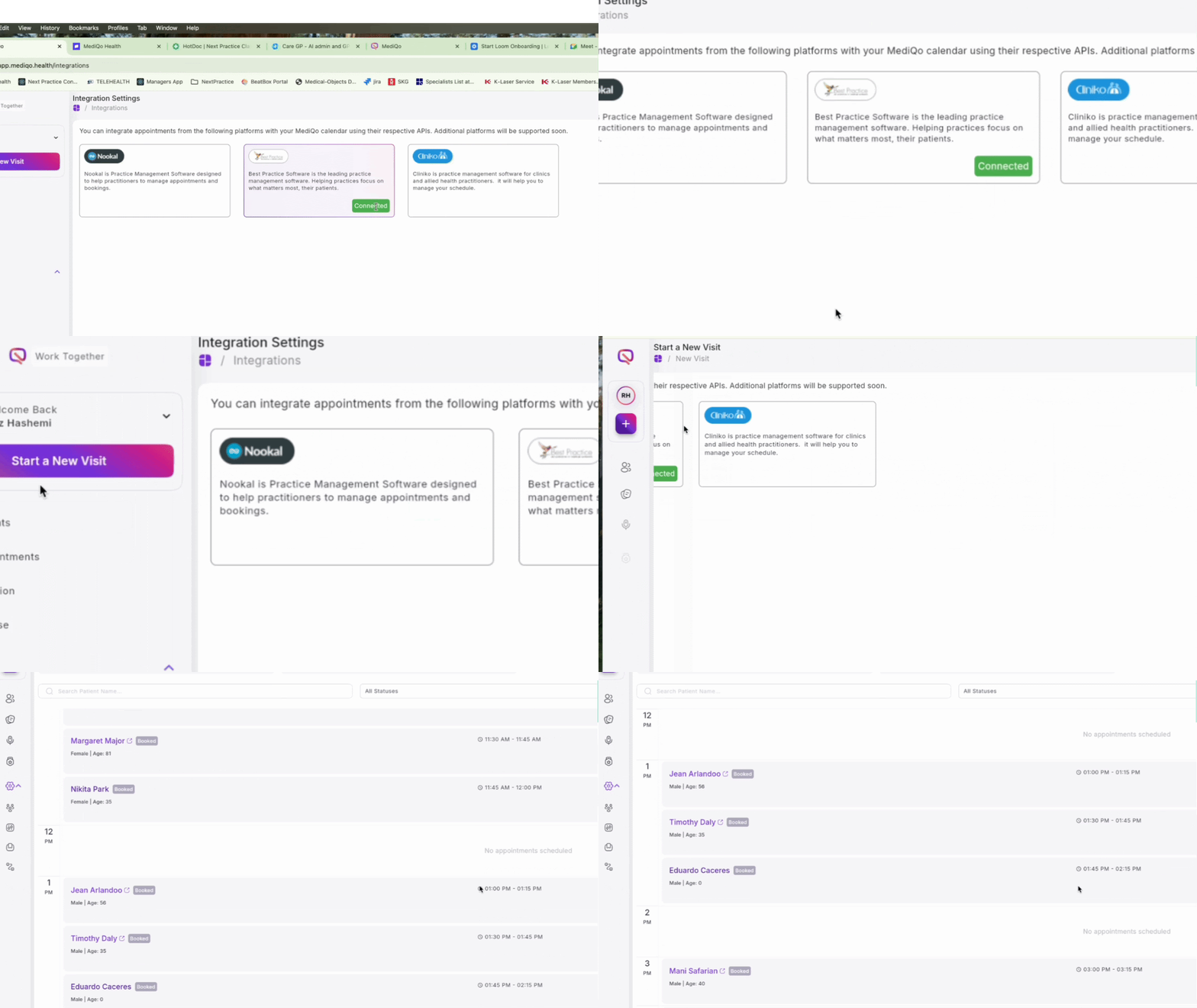
Return to the Integrations page. You should now see a green Connected badge on the Best Practice card.
Navigate to the Appointments tab in the sidebar.
Confirm that your patient list and daily schedule have synced from Best Practice.