>Support
Search by topic, feature or keyword
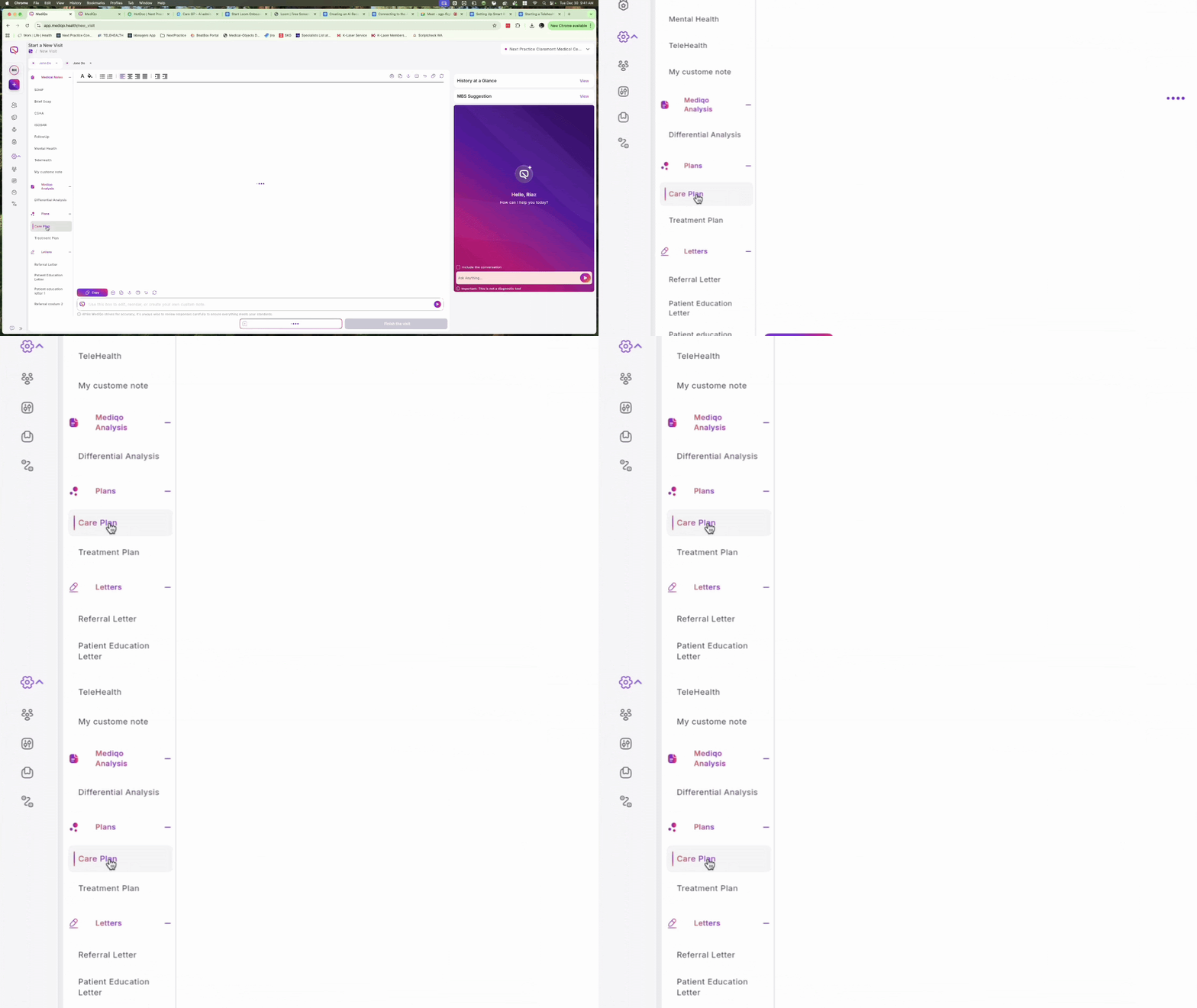
Navigate to the Care Plan section
While in a patient visit, click the Plans dropdown in the left-hand sidebar and select Care Plan. MediQo automatically populates this section based on the context of your current consultation.
Review the generated plan details
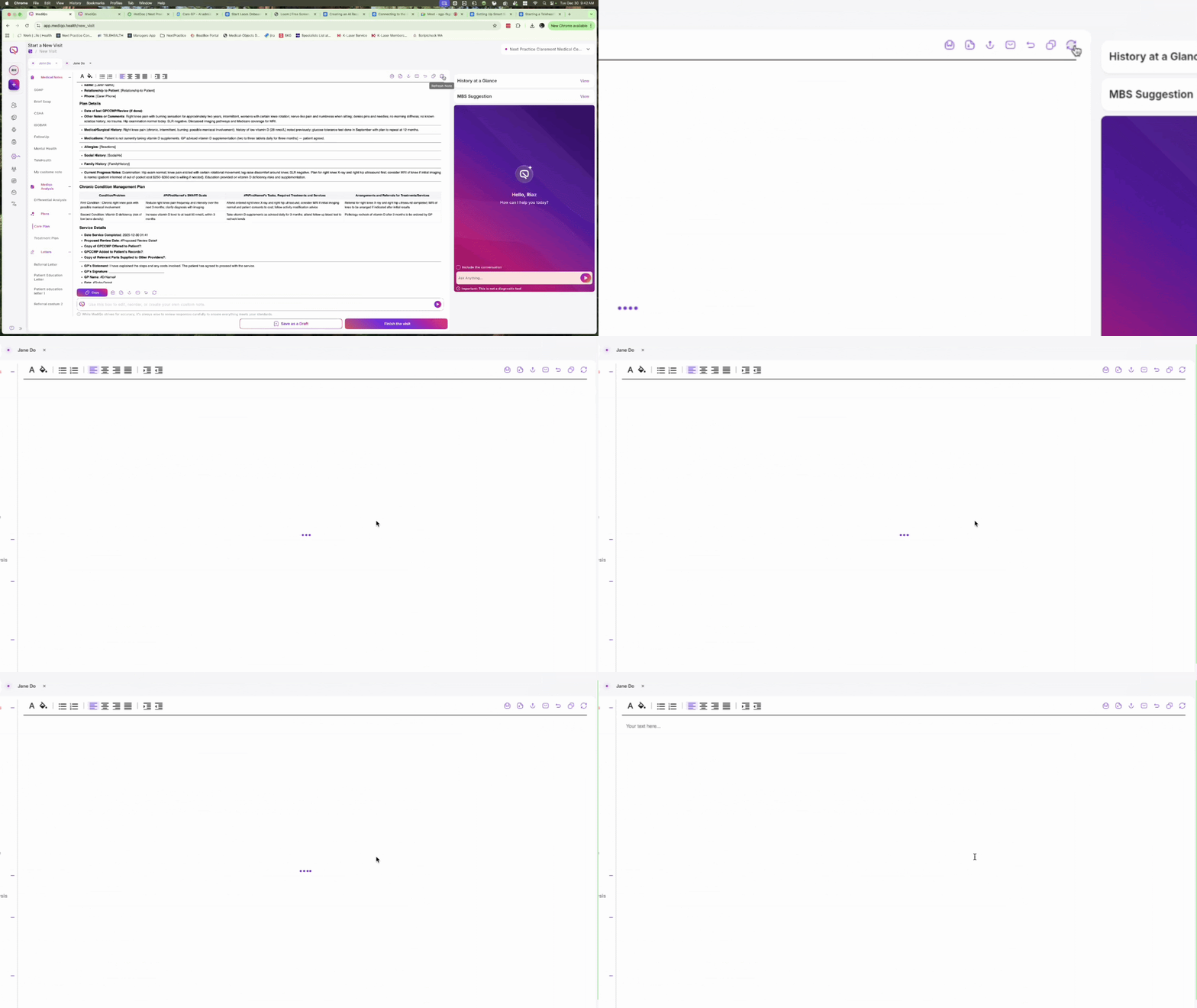
The system automatically generates a GP Chronic Condition Management Plan (GPCCMP). Review the suggested MBS item numbers at the top, followed by the Patient Details, Plan Details, and the comprehensive management plan below.
Refresh or manually edit the content
If you have added new information to the consult notes since opening the plan, click the Refresh icon at the top to update the data. You can also click directly into any text field within the plan to make manual edits or add specific notes.
Customise using the AI prompt box
Use the prompt box at the bottom of the screen to make broad changes to the plan. You can instruct the AI to remove specific sections, add details, or change the tone of the language.
Export and share the plan
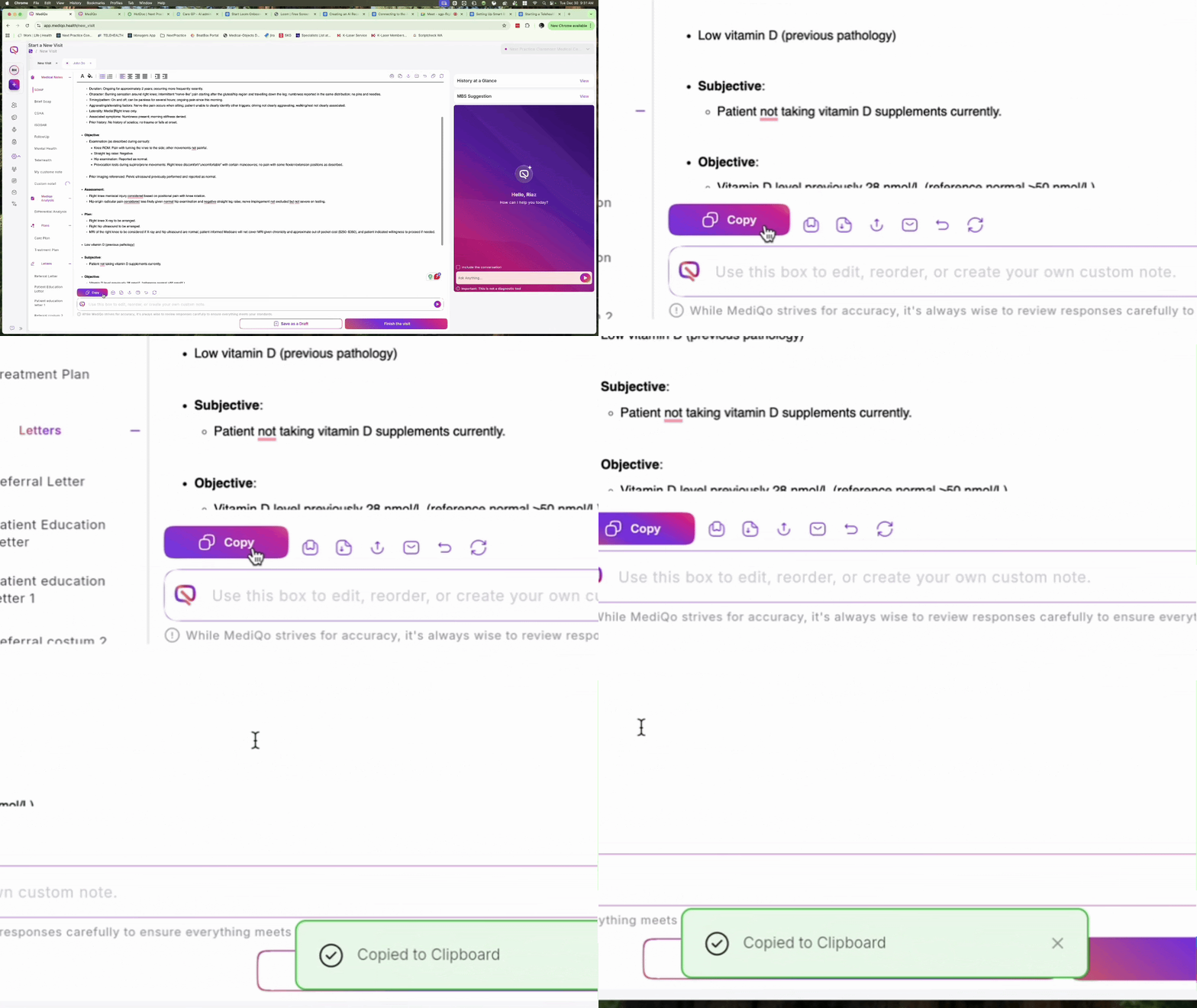
Once the plan is finalised, use the toolbar at the bottom of the editor. You can Copy the text to your clipboard, export it as a Word Document or PDF, Print it directly, or Email it to the patient.