>Support
Search by topic, feature or keyword
Initiate the Visit
There are two ways to begin a consultation in MediQo:
From the Appointment Book: Click the appointment icon next to the patient's name in your daily list.
Manual Search: Click the Start a New Visit button in the top right corner. Search for the patient by name, select their profile, and click Next.

Configure Visit Details
You will be prompted to confirm the visit settings. To ensure accurate billing suggestions and workflow:
Location: Select Clinic.
Consult Type: Select Telehealth
Start the Visit
Check that the correct microphone is selected in the dropdown menu. Click Start New Visit.
This action automatically sends a secure telehealth link to the patient via SMS.
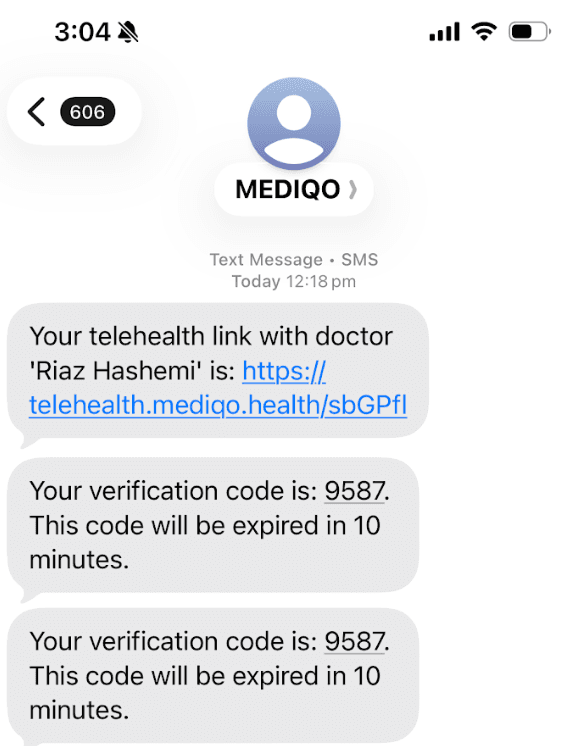
The patient can join (or rejoin if disconnected) using this link.
Enable Transcription
Once the video interface launches, click the Q button (floating icon) to begin recording and transcribing the session. This enables MediQo to generate AI medical notes, care plans, and documentation in real-time.

Manage and End the Call
Use the on-screen controls to toggle your camera/microphone or maximise the video feed. To finish the consultation, click the red phone button.