>Support
Search by topic, feature or keyword
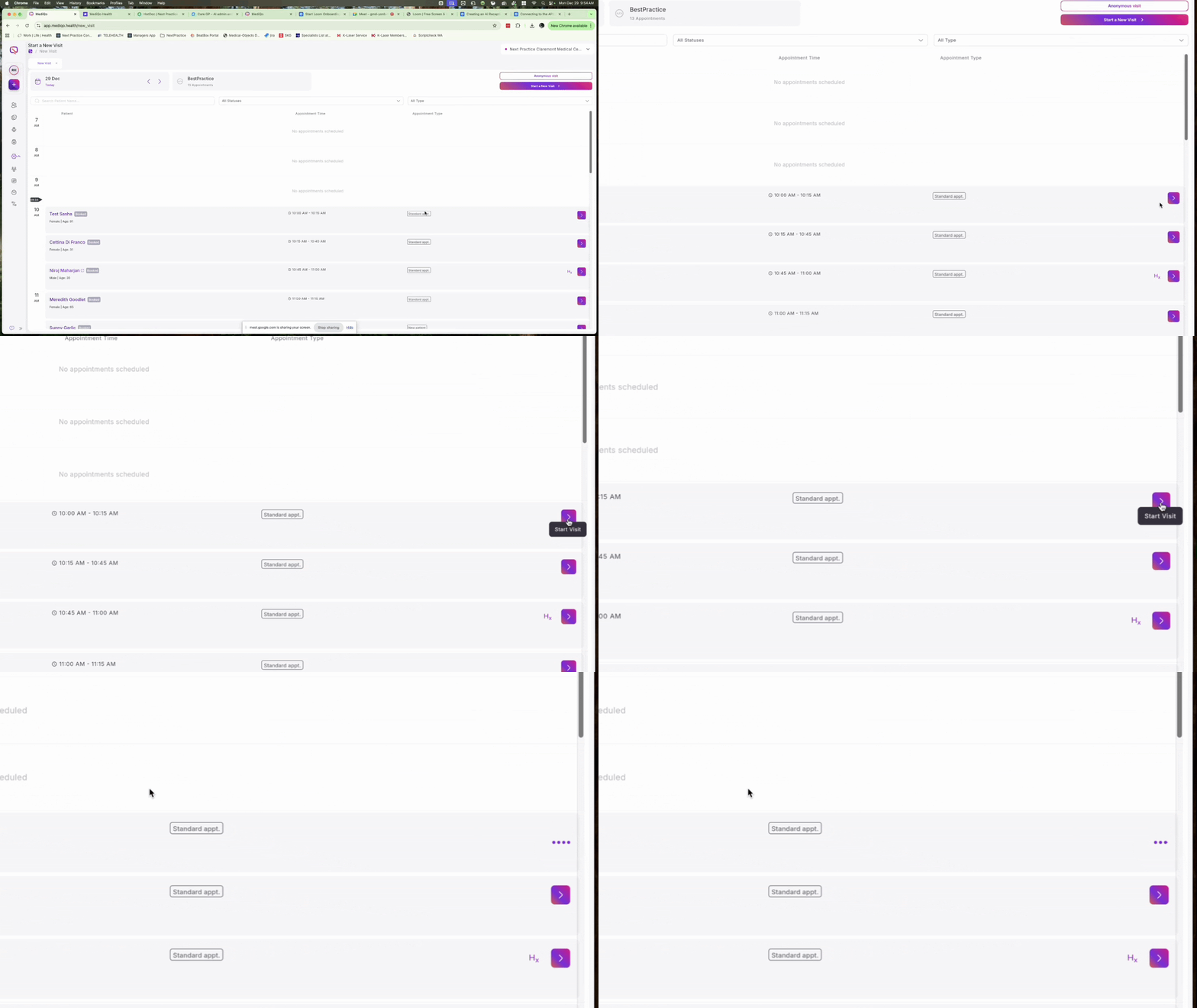
Understanding the Daily Calendar View
When you open MediQo, your daily calendar view serves as your main dashboard. It is organised into columns to help you track patient flow:
Patient Names and Time: Found on the left side of the screen.
Wait Room Tracking: See exactly how long a patient has been waiting.
Consult Duration: View the total time spent once an appointment is completed.

Identifying Appointment Types
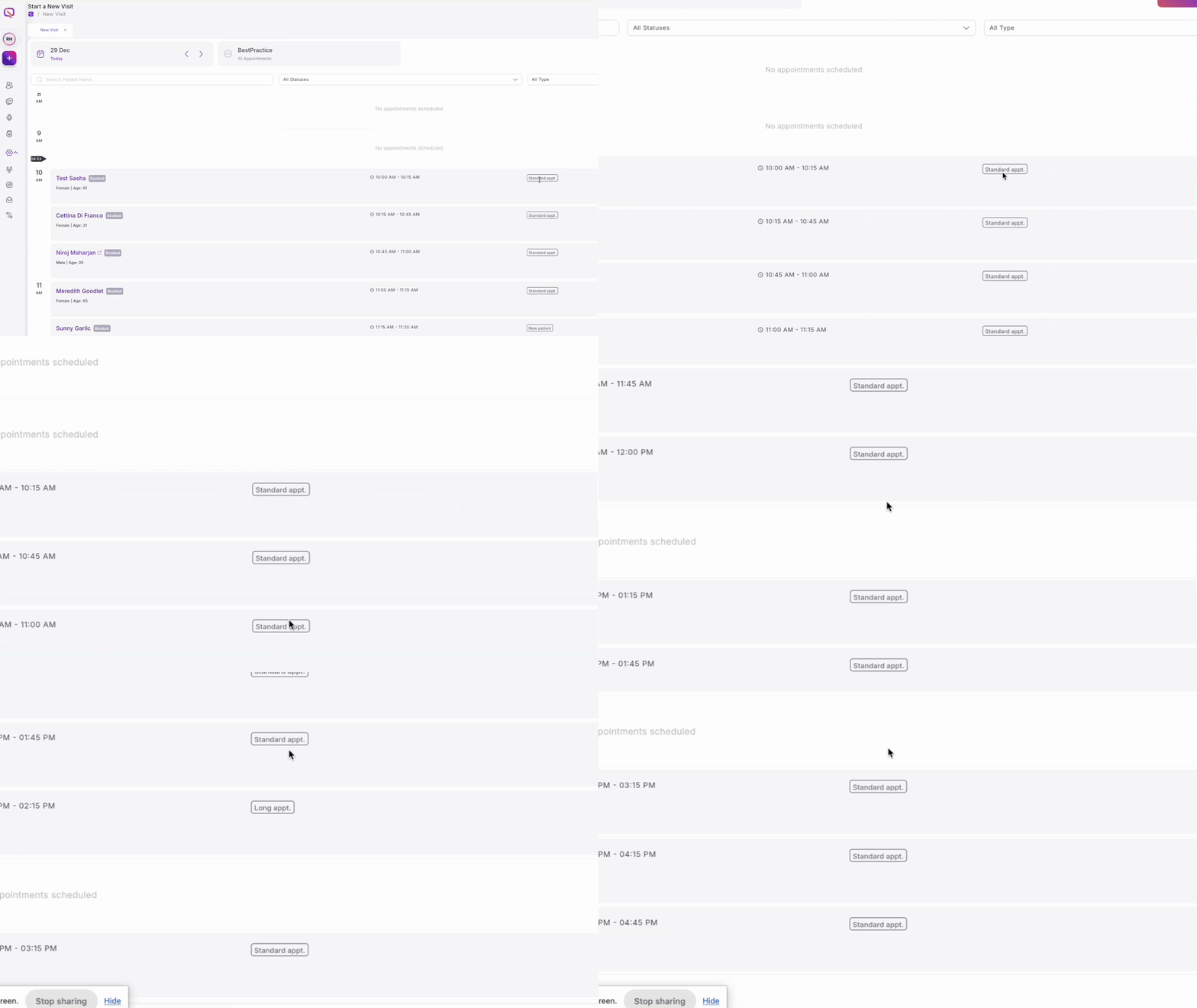
The third column tells you what kind of visit to expect. This allows you to prepare for different workflows, such as:
Standard Appointments
Telehealth Consults
New Patient Consults
Mental Health Consults
Starting a Visit
Starting a session is done with a single click directly from the row of the patient you are ready to see.
Find the patient row.
Click the "Start Visit" icon located on the far right.