>Support
Search by topic, feature or keyword
Locate the History at a Glance section on the right-hand sidebar and click it to expand the panel. Here, you will see a summary of patient complaints, plans, and key medical highlights.
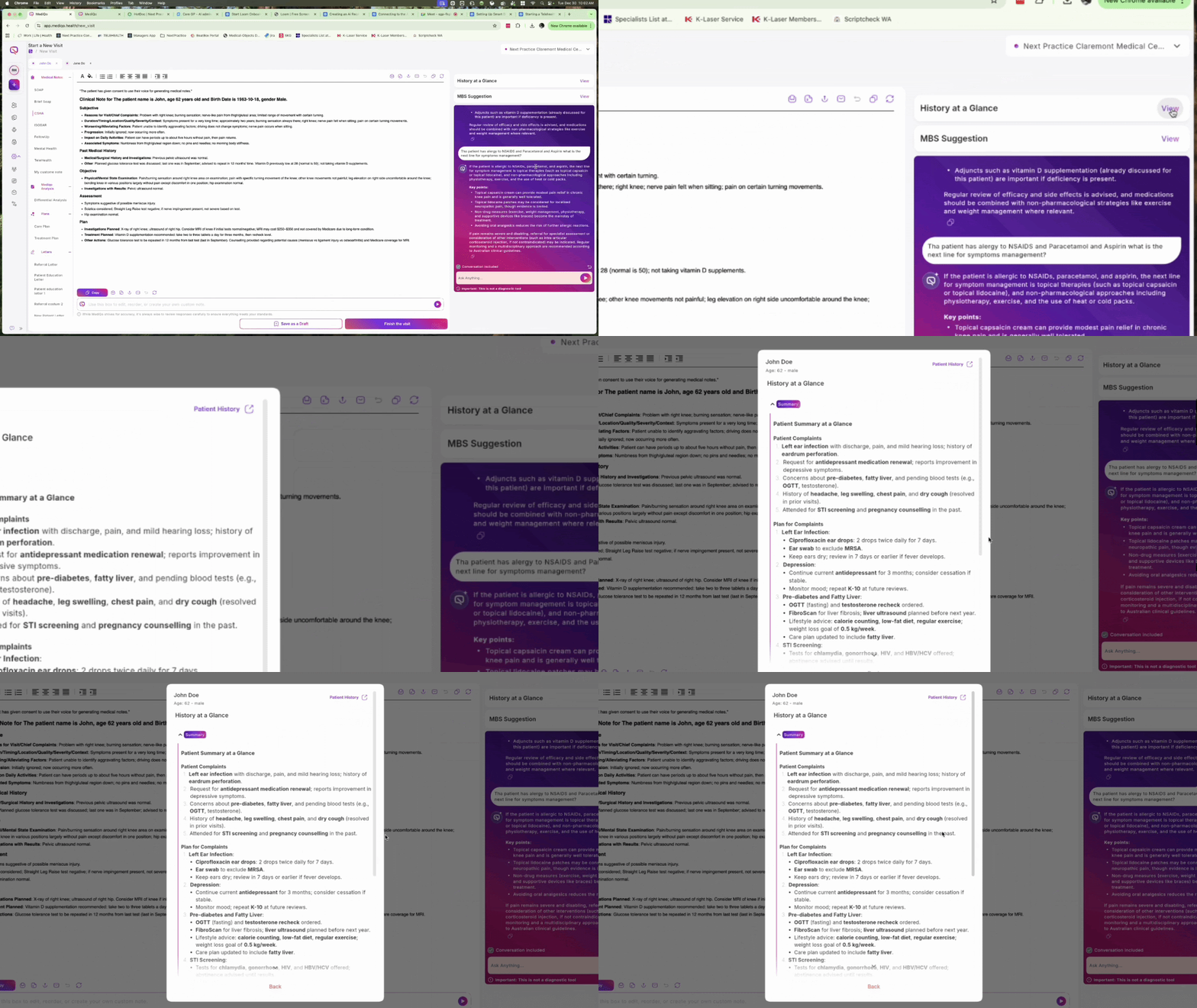
To view a comprehensive record, click the View History button (or history icon) in the top right corner. This displays detailed encounters, including medical notes, Medico analysis, care plans, treatment plans, and letters.
You can filter the displayed information by specific dates using the Date Range options to find relevant records quickly.
Use the Action Icons located at the bottom of the panel to perform tasks such as copying to the clipboard, emailing, exporting to a Word document, or exporting to PDF.
To return to the main screen, click Patients or Start a New Visit from the menu on the left sidebar.