>Support
Search by topic, feature or keyword
Customise your note
Generate a patient note and use the prompt box at the bottom of the screen to adjust the style, structure, or content to your preference.
Save as a template
Once satisfied with the format, click the Save to Template Library icon located just above the prompt box.
Name and confirm
Enter a name for your new template in the pop-up window and click Save Note. This template will now be accessible from the menu on the left.

Access the Template Library
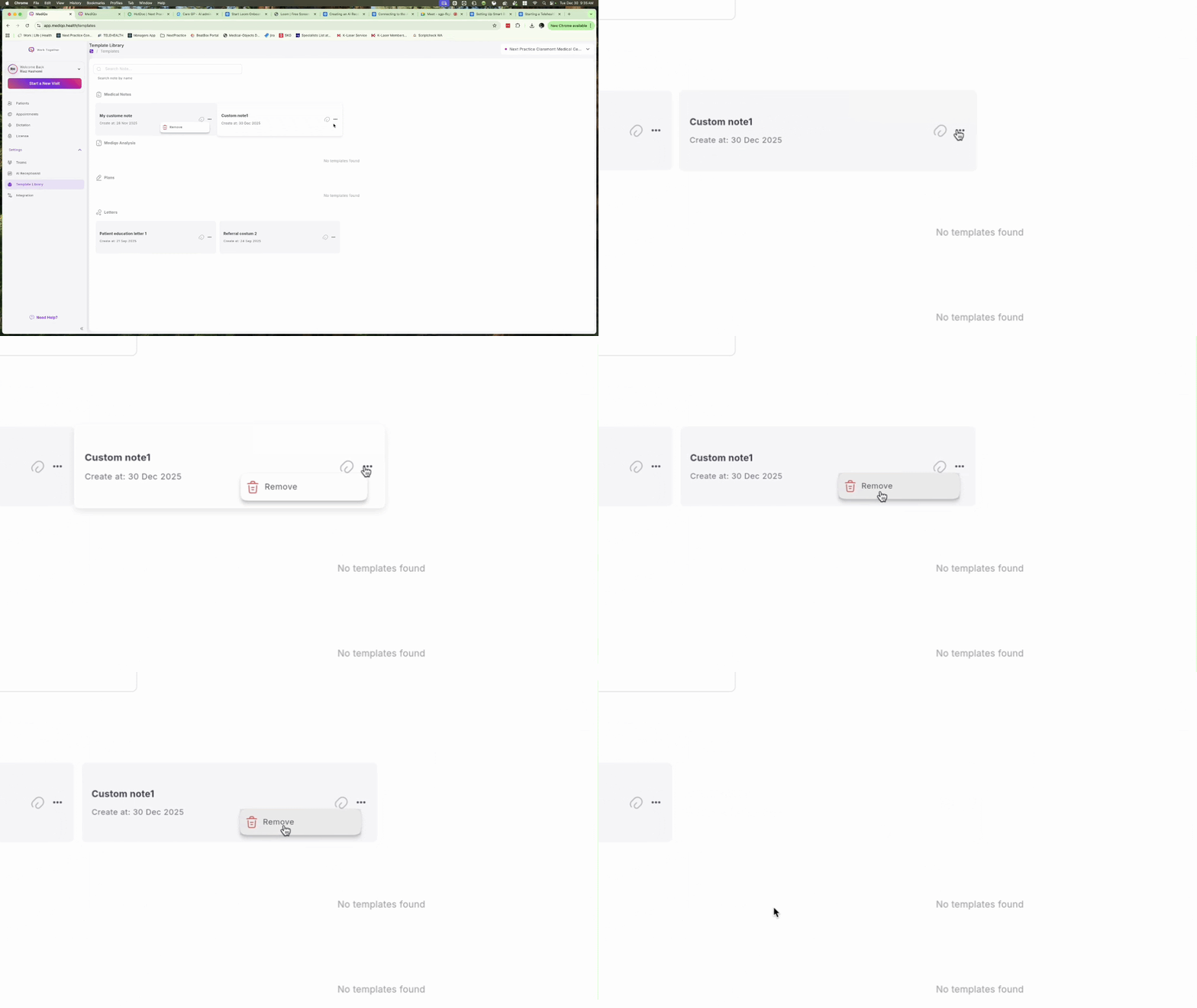
Navigate to the Template Library tab located on the left-hand sidebar. Here you will see all your saved templates organised by category (Medical Notes, Analysis, Plans, and Letters).
Set a default template
Locate the template you wish to use as your standard format. Click the Pin (Paperclip) icon to make it the default template for that specific category.
Delete a template
To remove an unwanted template, click the three dots menu on the right side of the template card and select Remove.